Introduction
HP printer offline is one of the most common issues faced by Windows users. Even when the printer is turned on and connected, Windows may still show it as offline. This guide explains the exact causes and step-by-step solutions to fix the HP printer offline problem permanently.
Why Does HP Printer Show Offline?
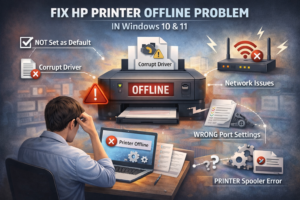
Common reasons include:
- Printer not set as default
- Outdated or corrupt printer driver
- Network connection issues
- Incorrect printer port settings
- Windows spooler service errors
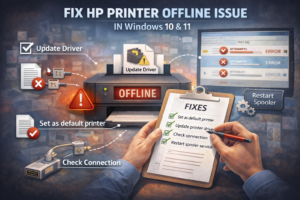
Solution:
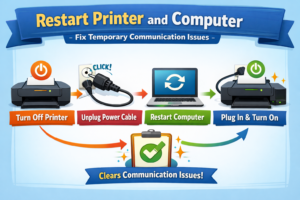
Method 1: Restart Printer and Computer
- Turn off the printer
- Unplug the power cable
- Restart your computer
- Plug the printer back in and turn it on
This clears temporary communication issues.
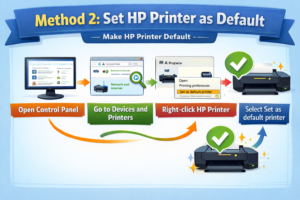
Method 2: Set HP Printer as Default
- Open Control Panel
- Go to Devices and Printers
- Right-click your HP printer
- Select Set as default printer
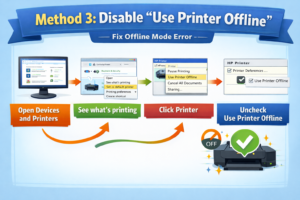
Method 3: Disable “Use Printer Offline”
- Open Devices and Printers
- Right-click HP printer → See what’s printing
- Click Printer
- Uncheck Use Printer Offline
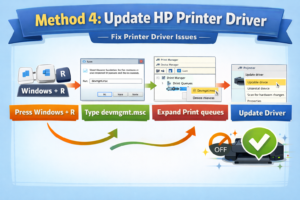
Method 4: Update HP Printer Driver
- Press Windows + R
- Type
devmgmt.msc - Expand Print queues
- Right-click HP printer → Update driver
You can also download the latest driver from HP’s official website.
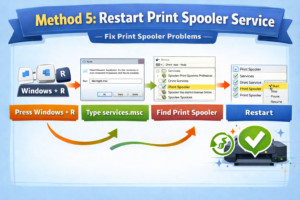
Method 5: Restart Print Spooler Service
- Press Windows + R
- Type
services.msc - Find Print Spooler
- Right-click → Restart
Conclusion
HP printer offline issues are usually caused by driver or connection problems. Following the methods above should bring your printer back online without professional help.